
Change the sign-up pop-up
When a shopper clicks Notify me, a pop-up asks for their details. You can change every text in it, its button, and the message shoppers see after they sign up. A preview on the right shows your changes as you type.
Open the pop-up settings
-
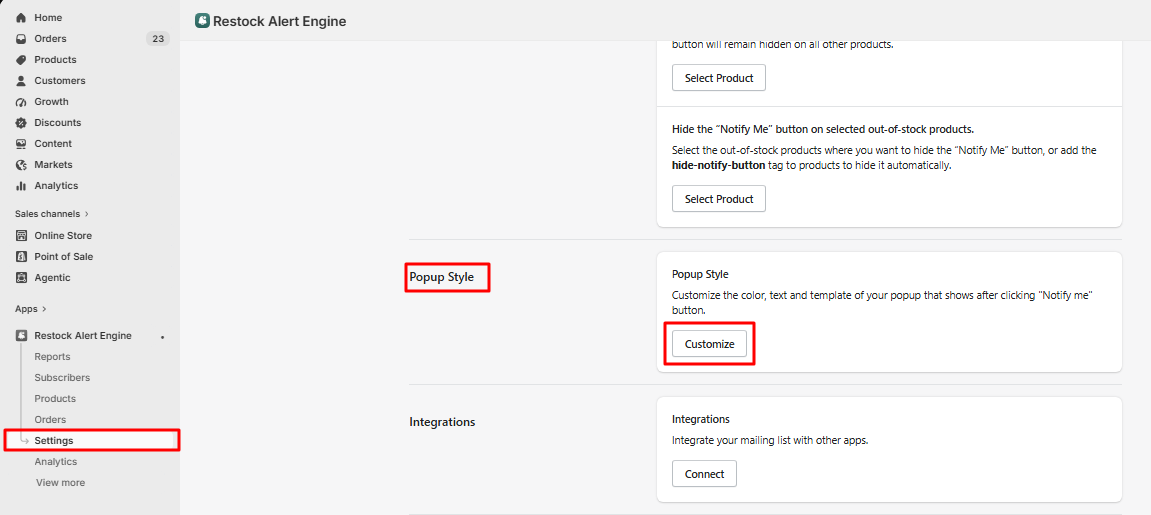
In the app, go to Settings › Popup Style and click Customize.
-
If your store sells in more than one language, choose the language at the top right before you edit the texts.
-
Change the settings below, then click Save.
Texts in the pop-up
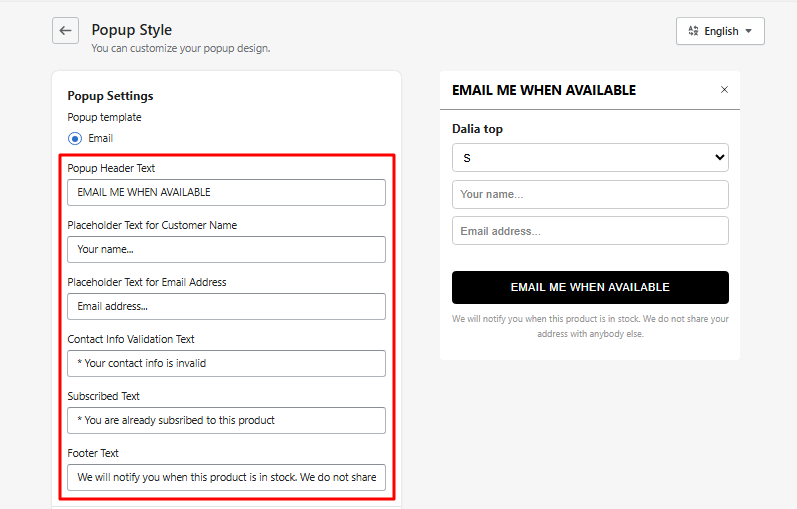
- Popup Header Text: the title of the pop-up.
- Placeholder Text for Customer Name and for Email Address: the hints inside the two fields.
- Contact Info Validation Text: the error shown when the email address isn't valid.
- Subscribed Text: shown when the shopper has already signed up for this product.
- Footer Text: the small print under the button.
Sign-up button and opt-in
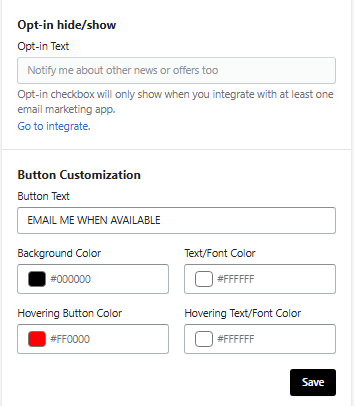
- Opt-in Text: a checkbox that lets shoppers also join your marketing list. It only shows when an email marketing app such as Klaviyo is connected: see Connect Klaviyo.
- Button Customization: the text, colors and hover colors of the pop-up's button.
Message after signing up
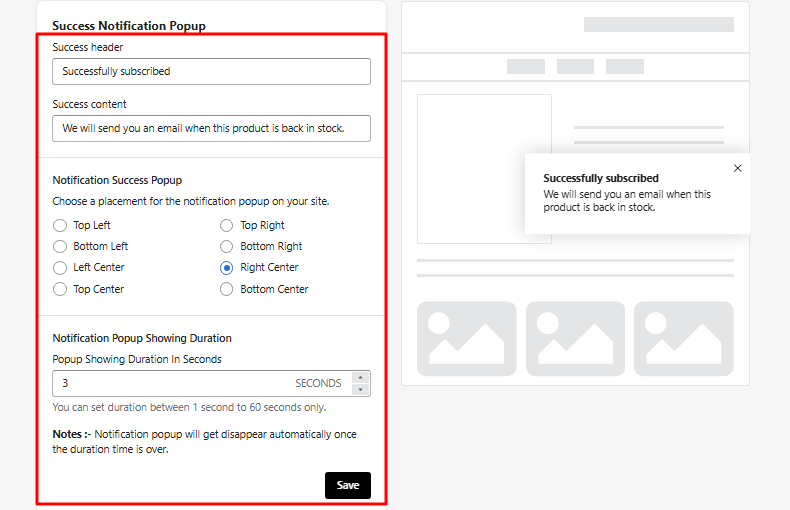
- Success header and Success content: the confirmation shoppers see.
- Notification Success Popup: where the message appears on the screen.
- Popup Showing Duration In Seconds: how long it stays, from 1 to 60 seconds.