
Show or hide the button on chosen products
By default the Notify me button shows on every sold-out product. You can limit it to the products you choose, or hide it on some of them.

Hide the button on some products
-
In the app, go to Settings. Under Hide the "Notify Me" button on selected out-of-stock products, click Select Product.
-
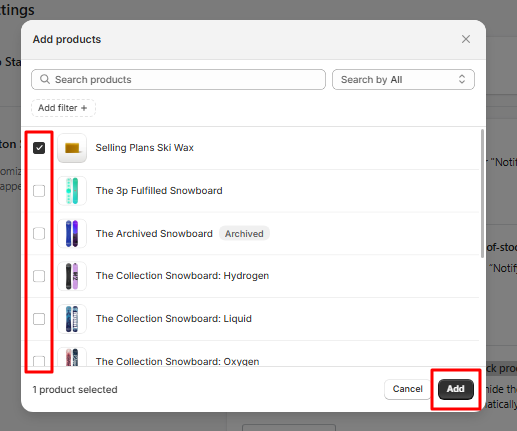
Tick the products and click Add.
Faster for many products: add the tag hide-notify-button to a product in Shopify, and the button is hidden on it automatically.
Show the button only on some products
-
In the app, go to Settings. Under Show the "Notify Me" button only for selected out-of-stock products, click Select Product.
-
Tick the products and click Add.
Keep in mind: once you choose products here, the button stays hidden on all other products.