
Add the Notify me button with code
If your theme has no app embeds (older themes), or you want to place the button yourself, add the Notify me button to your product page with a small snippet.
Before you start: on an Online Store 2.0 theme you usually don't need this. Turning on the app embed is enough: see Show the Notify me button on product pages. Duplicate your theme before editing code (Online Store › Themes › … › Duplicate).
Create the snippet
-
In your Shopify admin, go to Online Store › Themes, click … next to your current theme, then Edit code.
-
In the snippets folder, click Add a new snippet, name it
bis-product-buttonand click Done.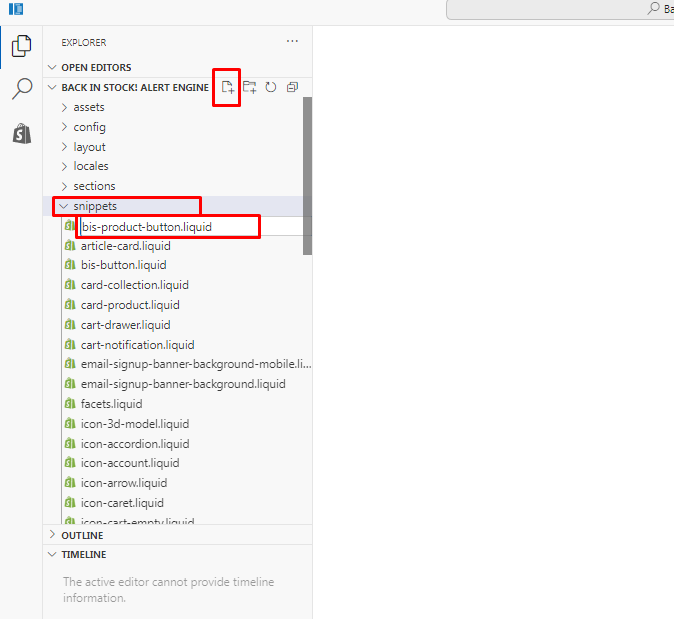
-
Paste this code into the new file and click Save:
<div>
  <script id='bisae_product_variants_{{product.id}}' type='application/json' data-product-name="{{ product.title }}" data-product_id="{{ product.id }}">
    {{ product.variants | json }}
  </script>
  <script id='bisae_product_selected_or_first_available_variant_{{product.id}}' type='application/json'>
    {{ product.selected_or_first_available_variant | json }}
  </script>
  <div class="bis-product-button" data-product-name="{{ product.title }}" data-product_id="{{product.id}}"></div>
</div>
Add it to your product page
-
Open your product template file, for example
main-product.liquid, and find the code of the Add to cart button. -
Paste this line where the button should appear, then click Save:
{% render 'bis-product-button', product: product %}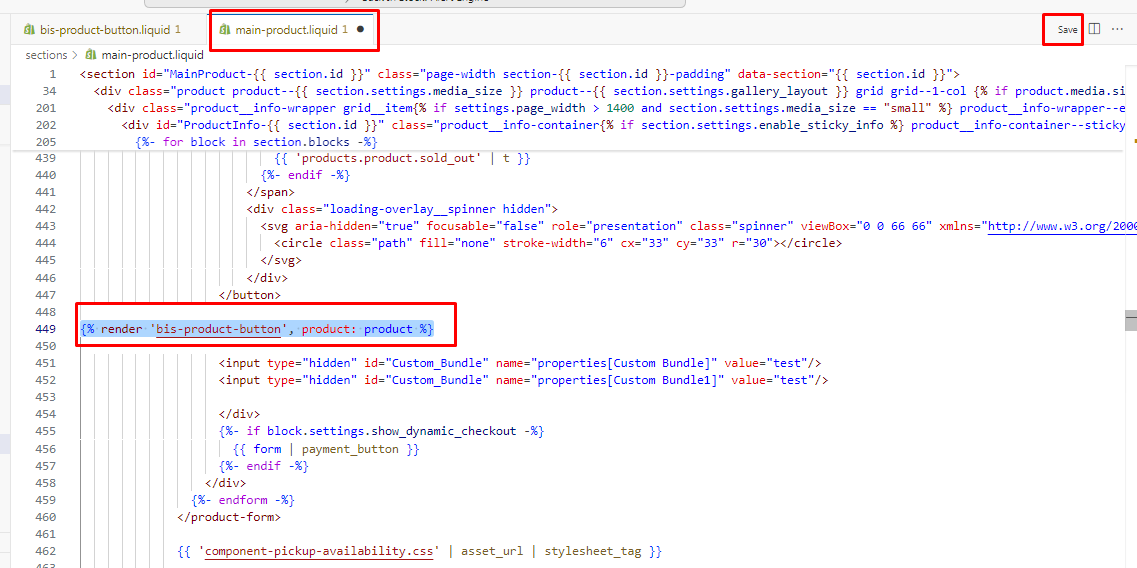
Check that it works: open a sold-out product in your store. The Notify me button shows where you added the line.
Change how this button looks
In the app, go to Settings › Button Style, click Customize, and scroll to the custom button section. You can change its text, colors and hover colors.


Need a hand? Email support@scriptengine.net and our team will add the button to your theme.